Getting started
Connecting a property and getting reservations flowing in.
Connect your PMS
Connect your property to Misfora. If your country requires guest reporting and Misfora supports it, choose the government registration system for your property.
Using a spreadsheet instead of a PMS? → Google Sheets setup guide
Reservations appear automatically
Once synchronization is enabled, reservations are imported automatically. You don't need to recreate them manually.
Send a guest check-in link
Open the reservation and send the guest their personal registration link.
By default, links are sent automatically to every guest 48 hours before arrival. This timing can be adjusted, and automatic sending can be turned off entirely for a property.
Automatic sending is switched off. The first phase is built around scanning documents at reception, or sending a link to each guest manually using the Send link button in the guest table.
Guest registration
What happens once the guest has a link — or once a manager starts the process for them.
The guest uploads a document
The guest opens the link on their phone and photographs their passport or ID card directly in the browser — no app to install.
If the photo isn't clear enough on the first attempt, the guest can simply try again using the same link. There's no need to wait for a manager to step in.
You can also test Misfora's passport data extraction technology for free, without a booking or a guest link — try the passport OCR tool on its own.
Review the result
Misfora recognizes the document and compares the extracted information with the reservation.
If the document is recognized successfully, the guest's information becomes available for the next steps in the registration process.
Common scenarios
Registration doesn't always follow the same path — here's how Misfora handles the common variations.
Guest completes registration before arrival
The guest completes the process before reaching the property. Staff only need to confirm that everything is ready and complete the check-in when the guest arrives.
Guest arrives without completing registration
This covers two common situations: the guest never opened the link, or opened it but couldn't get a usable document photo.
Before falling back to reception, a manager can contact the guest directly. Every guest row includes one-click links to WhatsApp, Viber, Zalo, and Telegram, so staff can reach the guest without first searching for their phone number. If the guest still doesn't complete the process in time, the manager can run through the same registration steps at reception.
This is particularly useful for management companies operating apartments without a physical front desk. Whoever meets the guest to hand over the keys can scan the document on their own phone or the guest's phone, and the data is immediately synchronized to the right place — with nothing else to enter at a desk afterwards.
Guest's document wasn't recognized correctly
Sometimes the document photo is already on file, but recognition doesn't produce a complete result. The guest appears in the guest table with a Needs review status.
The manager opens the uploaded document and fills in any missing information by reading it directly from the document photo — the data can be completed before the guest arrives, making check-in a single click.
Guest information doesn't match the reservation
Misfora checks the document against the expected guest information and identifies problems such as an expired passport, a document belonging to another person, or an unsupported or incorrect document type — see which documents and countries Misfora supports.
Instead of silently accepting the document, Misfora flags the problem and lets the guest try again. Depending on the result of that new attempt, the guest then follows Scenario 1, 2, or 3.
The guest table
Once reservations and guest documents start coming in, staff manage the registration process from the guest table. It shows reservation details, document status, payment, check-in status and other information needed during the stay.
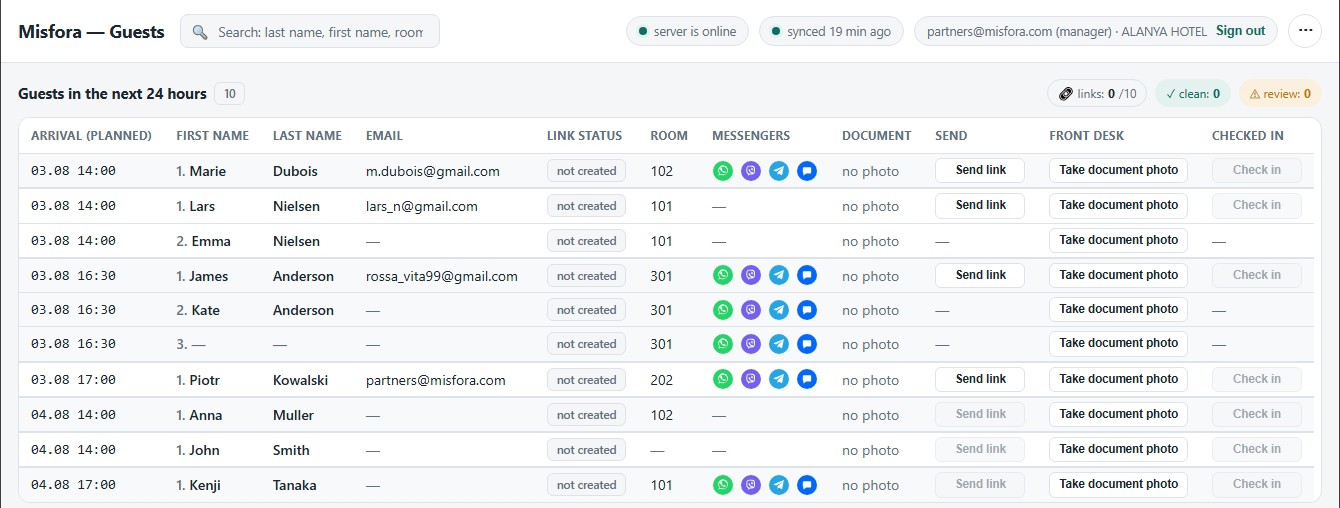
Staff can review guest data, open submitted documents, send registration links, contact guests and complete check-in without switching between several screens.
Check-in
How recognition, PMS sync and — where required — government reporting fit together.
Complete check-in
Document recognition, PMS synchronization and government reporting are separate processes with different triggers:
- PMS synchronization happens as soon as the document is recognized. Confirmed guest data is synchronized back to the PMS without waiting for check-in.
- Government reporting, where an integration is used, happens only after the guest has checked in. Misfora prepares the submission and sends it to the relevant government system at that point — never before.
- Guest records remain available according to the property's retention settings. See data retention below.
Check-in itself becomes available once both conditions are met:
- At least one guest on the stay has a confirmed document.
- The stay is marked as paid.
When a PMS is connected, the Check in button writes the arrival straight to it — staff never need to open it separately. Guests whose documents are confirmed later are added to the Checked in list automatically.
After check-in
Checked-in guests move to a separate Checked in list. Where a government registration integration is used, their information is submitted automatically at this point; otherwise the guest record stays in Misfora — see data retention below.
With a government integration, if a guest changes rooms, the updated information is resubmitted automatically.
Data retention
How long guest data is kept
Guest data is kept only as long as it's needed. How long depends on the country and the property:
- Where storage isn't required guest data is deleted at checkout — the guest is removed from Misfora along with all associated data, including document photos.
- Where the law requires a guest register, guest records are kept after checkout according to the property's retention settings and applicable local requirements, then deleted automatically.
At any time, staff can export guest data from the guest table to a spreadsheet (CSV) and send it wherever and in whatever format they need.
See everything Misfora can do, or the step-by-step Exely PMS connection guide. Building your own integration instead of using Misfora end to end? The document-scanning part is available separately as a developer API.
Ready to try it at your property?
Free during the private beta — first partners get onboarded personally.