Before you begin
Make sure you have:
- Administrator access to the property's Exely account (secure.exely.net.tr or your regional Exely dashboard).
- A Manager or Admin account in Misfora for the company that owns the property.
- The property's Property ID in Exely — a numeric identifier you'll enter into Misfora later.
Create an API connection in Exely
Everything in this part happens inside your Exely dashboard.
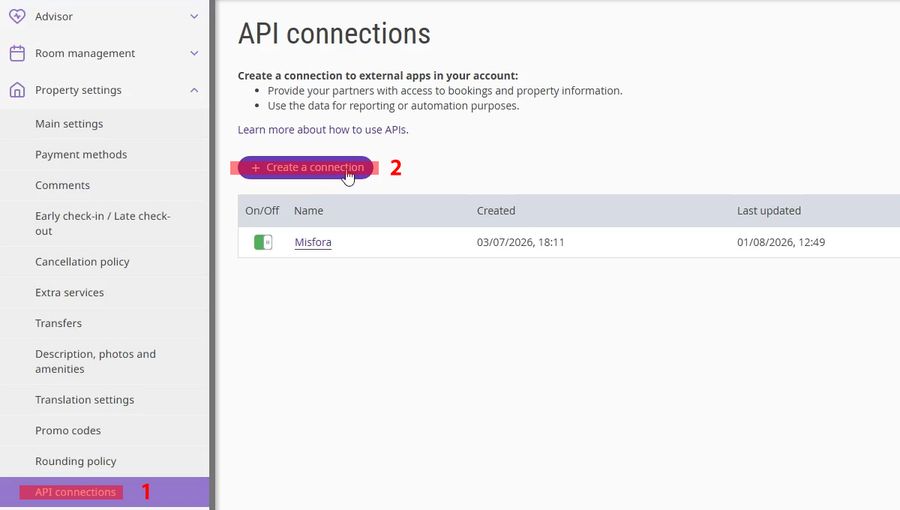
Open API Connections
Log in to your Exely dashboard and open API Connections.
Create a new connection
Click + Create connection.
Name the connection
Give the connection a descriptive name, for example:
Alanya Hotel
A clear name makes it easier to distinguish connections later, especially if the same Exely property is connected to multiple Misfora companies.
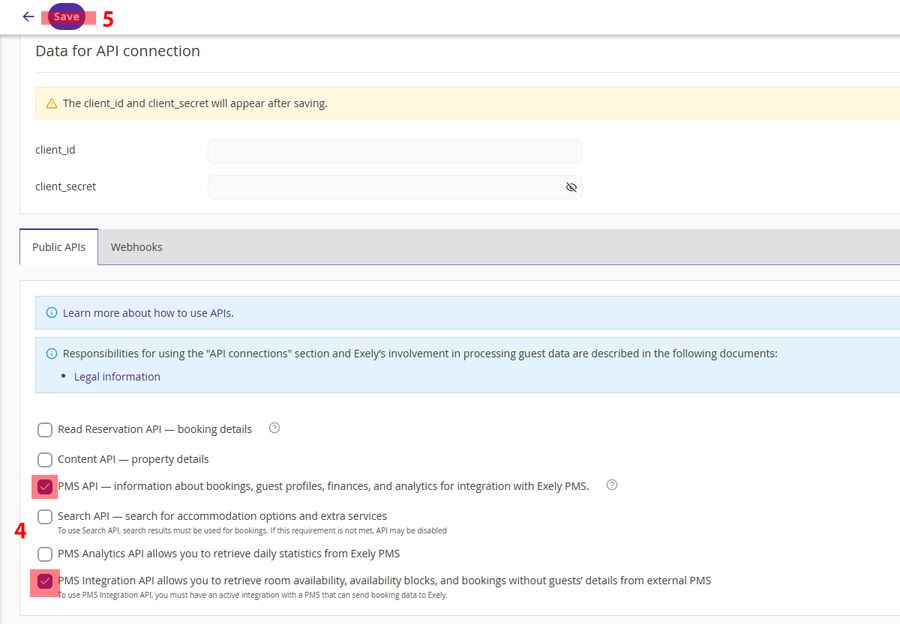
Enable PMS API access
Make sure the connection has PMS API access enabled.
Some Exely API connections are created with limited permissions (for example, Content API only). In that case Misfora will be able to authenticate but won't be able to read or update reservations — the Test connection step in Misfora will report this explicitly.
Save
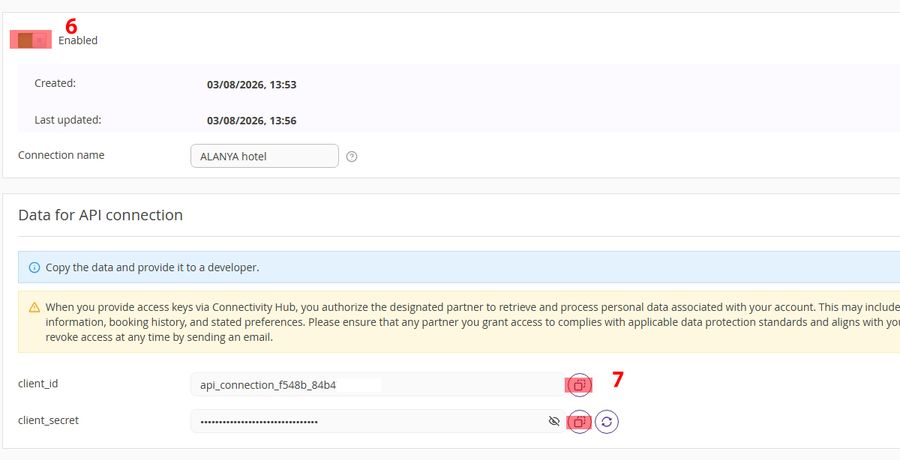
Enable the connection
Turn the connection On. Disabled connections cannot authenticate with Misfora.
Copy the API credentials
Open the newly created connection and copy:
client_idclient_secret
You'll need both values in Part B.
Configure the webhook
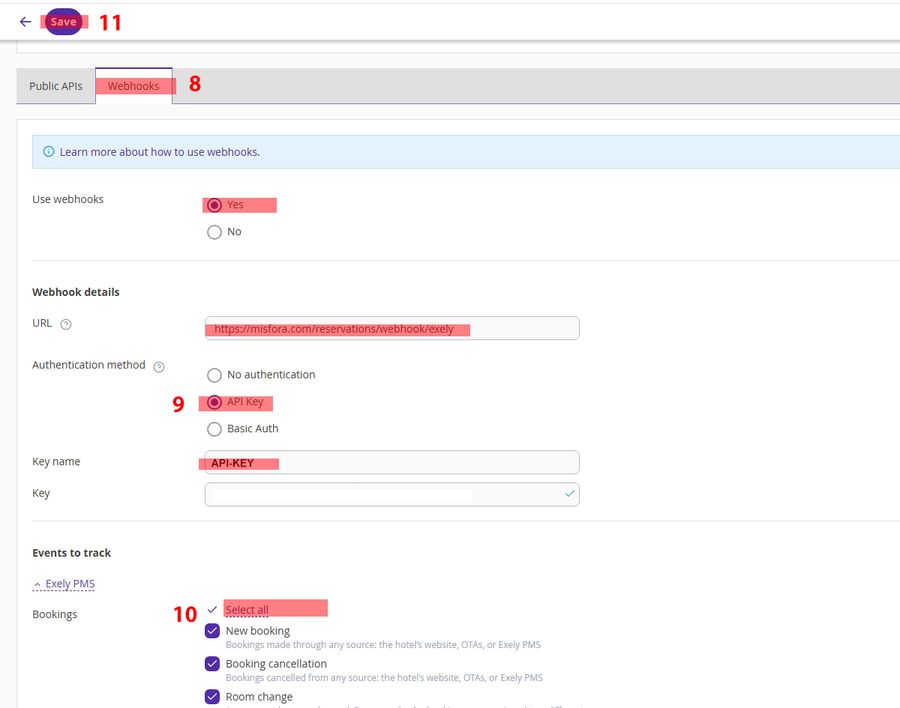
Create a webhook
Inside the same API connection, open the Webhooks section and create a new webhook pointing to:
https://misfora.com/reservations/webhook/exely
This endpoint is shared by every Misfora company and property — Misfora identifies incoming requests internally, so you don't need a unique webhook URL for each property.
Leave the authentication field empty for now
Exely will ask for an authentication value (usually called API-KEY). Leave this field empty for now — you'll generate the required value in Part B, step 19, then return here to paste it into Exely.
Subscribe to booking events
Subscribe the webhook to all events below:
webpms:create_bookingwebpms:update_bookingwebpms:cancel_bookingwebpms:check_in
Event names may vary slightly between Exely accounts — subscribe to all booking lifecycle events that are available.
Save
Connect the property in Misfora
Everything in this part happens inside the Misfora dashboard.
Sign in to Misfora
Log in to the Misfora dashboard for the company that owns the property.
Open the Misfora settings
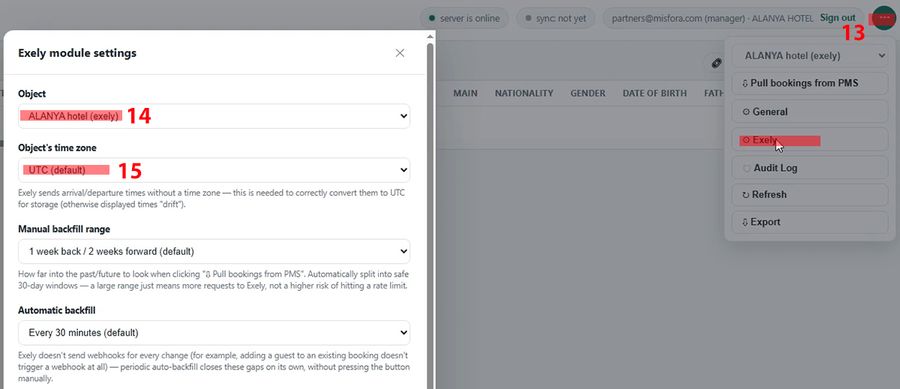
Open the property's Guest Table and click ⚙ Exely in the top toolbar.
In the Misfora Module Settings panel:
Property
Make sure you're editing the correct property if your company manages more than one.
Property time zone
Select the property's local time zone. Exely sends arrival and departure times without time zone information — Misfora uses this setting to convert those timestamps correctly. If the wrong time zone is selected, reservation times will be shifted by the corresponding UTC offset.
Automatic backfill
Keep Automatic backfill enabled. Exely does not send webhooks for every reservation update — for example, adding a guest to an existing reservation does not trigger a webhook. Automatic backfill periodically re-synchronizes reservations so these changes still make it into Misfora.
Enter the Property ID
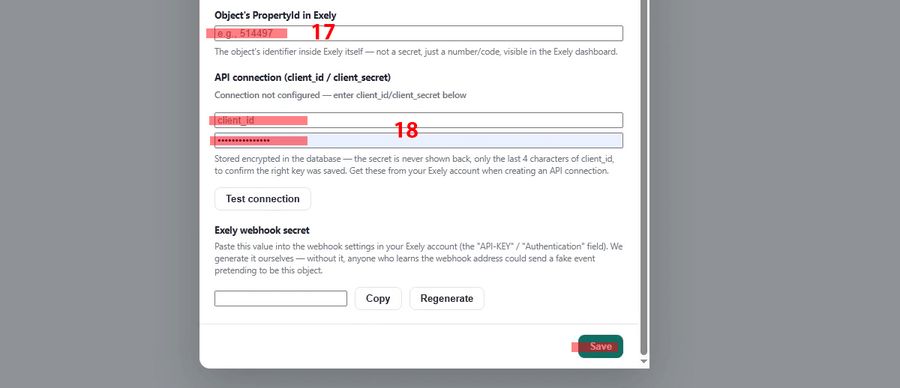
Under Property ID, enter the numeric Property ID from Exely.
This value is not confidential — it's simply the property's identifier within Exely.
Enter the API credentials
Under API Connection, paste the client_id and client_secret from Part A, then click Save.
Copy the webhook secret
After saving, Misfora generates an Exely Webhook Secret. Click Copy, then return to the webhook you created earlier in Exely (Part A, step 9) and paste this value into the API-KEY / Authentication field.
This secret allows Misfora to verify that incoming webhook requests were actually sent by your Exely account. Without it, anyone who learns the webhook URL could send fake booking events.
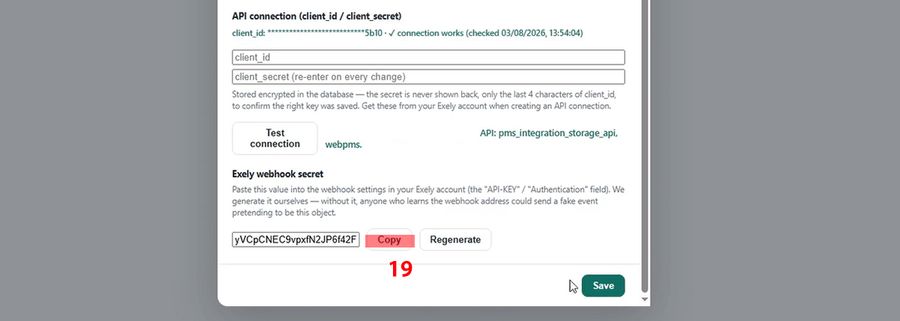
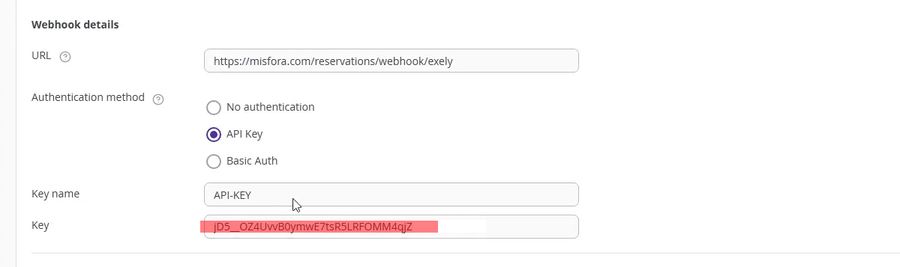
Pasting the Misfora webhook secret into Exely's webhook Key field.
Test the connection
Click Test connection. You'll see one of the following results:
client_id and client_secret were copied correctly, that there are no extra spaces before or after either value, and that the API connection is enabled in Exely.
Verify the integration
- Import a test reservation. Create a test reservation in Exely (or use an existing one), then either wait for the next automatic backfill or click ⇩ Pull Bookings from PMS in Misfora to synchronize immediately.
- Verify the imported data. Make sure the reservation appears in the Guest Table with the correct guest name, arrival date, departure date, accommodation, and reservation status.
If everything looks correct, the integration is complete.
See how Misfora automates KBS guest registration — what KBS is, who needs it, and how it connects to the check-in workflow above.
Known Exely API limitations
The following behaviors are limitations of Exely's public API rather than Misfora itself. Understanding them will help avoid confusion during day-to-day use.
Why aren't guest names updated in Exely?
Exely's public API does not provide an endpoint for updating a guest's first or last name. The only guest-related fields that can currently be updated are document information (document number, issue date, expiry date, issuing authority) and country of birth.
Because of this limitation, Misfora can never write corrected guest names back to Exely — the guest name stored in Exely is always treated as the source of truth. If Misfora's OCR recognizes a more accurate spelling from the passport, that correction stays inside Misfora only and will not appear in Exely automatically.
To correct a guest's name, update it manually in the Exely dashboard. This limitation comes from Exely's API and cannot be bypassed by Misfora.
Can I use one Exely connection for multiple companies?
The same physical property can be connected to multiple Misfora companies, but each integration must use its own Exely API connection, its own client_id, its own client_secret, and its own webhook secret.
Misfora identifies incoming webhook requests using the webhook secret rather than assuming each property has only one integration — do not reuse the same API credentials across multiple Misfora properties.
Why isn't my reservation appearing immediately?
Exely webhook payloads include only the reservation identifier and Property ID — they never contain guest names, contact information, or passport details. After receiving a webhook, Misfora automatically requests the complete reservation through the Exely API.
If Exely is temporarily unavailable when the webhook arrives, reservation details will be synchronized during the next automatic backfill, or after a manual Pull Bookings from PMS operation.
How long do Exely OAuth tokens last?
Exely OAuth access tokens are valid for approximately 30 minutes. Misfora refreshes them automatically in the background, so no user action is required. If you're working directly with the Exely API outside of Misfora, keep this expiration time in mind while debugging or testing.
Can guests be checked in before their arrival date?
No. Exely does not allow a reservation to be checked in before its scheduled arrival date. Attempting to do so returns an error similar to:
Planned check-in date has not yet arrived
Actual and planned check-in dates must match
This restriction is enforced by Exely. If a guest arrives early, the reservation will remain in its pre-arrival state until the scheduled arrival date.