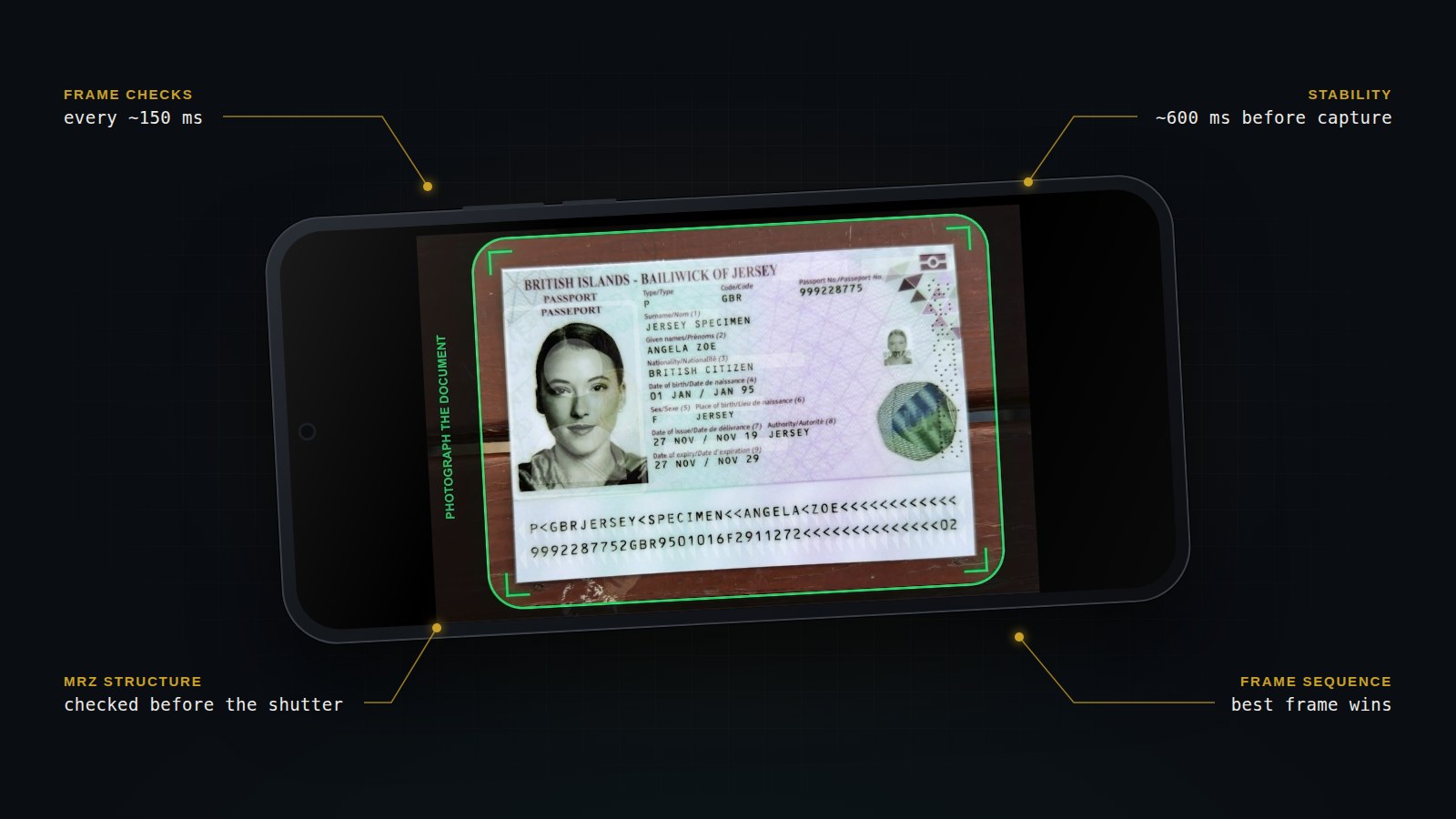
A document capture screen looks simple. A frame, a camera feed, maybe a few indicators.
Underneath, however, a continuous quality-control loop is running.
The goal isn't simply to take a photo. The system needs to determine when the camera input is good enough to send to the recognition pipeline.
This capture engine is a core part of Misfora's Web Scanner SDK. It runs before OCR and turns an uncontrolled camera stream into a usable document image.
The interesting part is that most of this complexity should never be visible to the person using it.
The simpler the capture experience feels, the more decisions may be happening underneath it.
What the Browser Is Checking
The browser analyzes camera frames roughly every 150 milliseconds.
Most real-time checks use a reduced version of the image. There is no reason to process the full-resolution camera frame for every small quality decision, and reducing the image keeps the browser responsive.
The system looks at more than a dozen quality signals, including:
- brightness
- glare and overexposed pixels
- overall sharpness
- regional sharpness
- document edges
- document size
- distance
- rotation
- margins
- perspective
- document boundaries
- MRZ structure
- movement
- sudden geometry changes
These aren't 13 independent AI models running in parallel. They are relatively small signals that are combined to answer one larger question:
Is this document image good enough to be useful?
Why Average Sharpness Isn't Enough
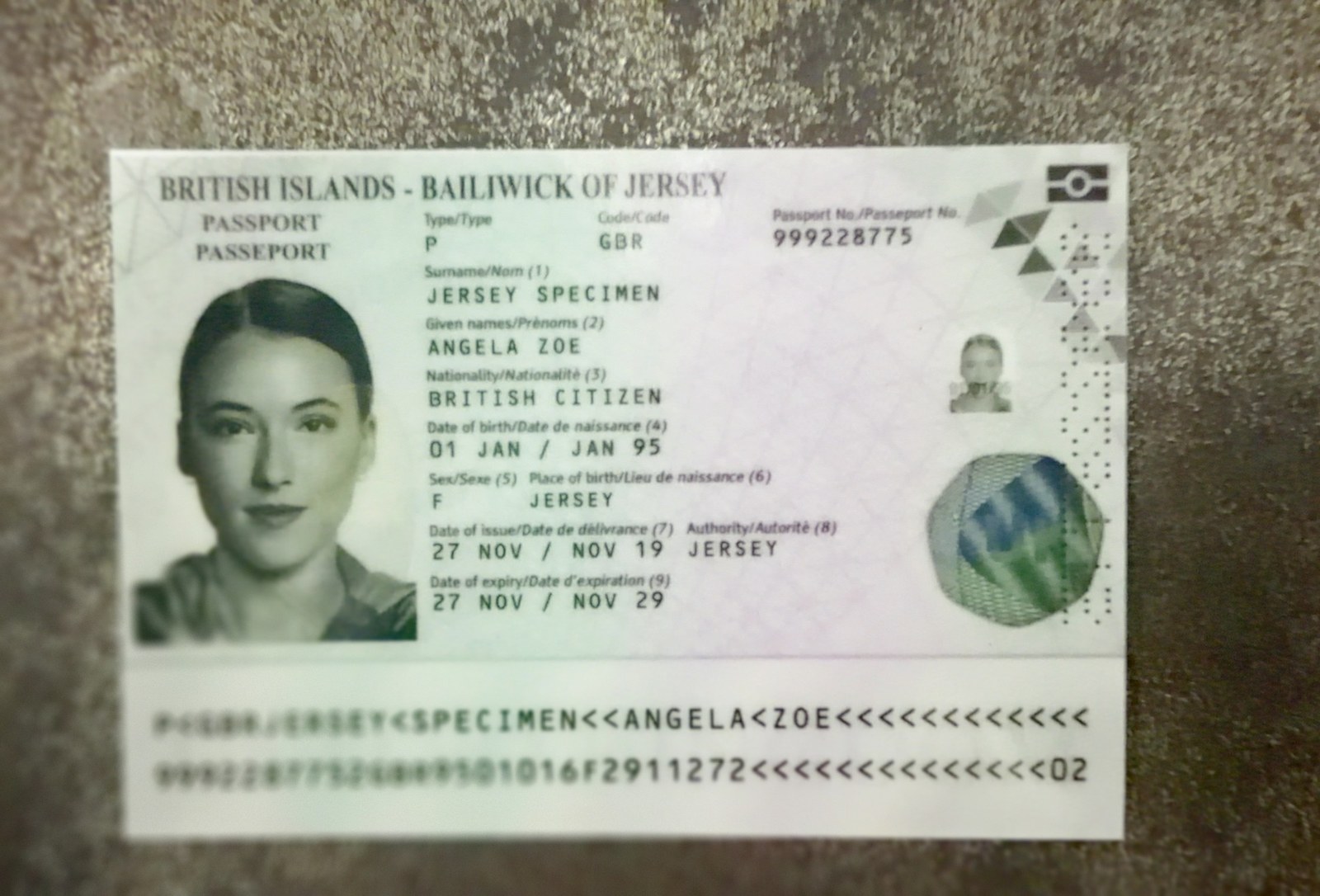
An average sharpness value can hide a blurry corner, and that corner may contain the text that matters. The capture engine therefore measures sharpness in separate regions of the document and pays attention to the weakest one — which catches uneven autofocus, a slightly curved page, motion, or a document held at an angle so that one edge is farther from the lens. We measured how quickly recognition degrades as an image gets blurrier in How Blur Affects Passport OCR.
Geometry Is More Than “Find the Rectangle”
Finding the document is only the first step. The engine also checks that all four edges are visible, that the document fills enough of the frame, that there are margins around it, and that rotation and perspective stay within limits. Passports and ID cards have different proportions and MRZ layouts — a standard TD3 passport MRZ has two lines of 44 characters, a TD1 ID card three lines of 30 — so these rules are set per document type rather than shared (see Belgian eID Card MRZ: TD1 Format and the list of supported documents). A document capture SDK can't simply rely on “rectangle detected.”
Temporal Logic: The System Doesn't Trust One Frame
A single frame can look good by accident.
Maybe the autofocus has just settled. Maybe the phone moved immediately afterward. Maybe glare disappeared for a fraction of a second.
The capture engine therefore considers recent frame history rather than making every decision from one image.
For example, the document may need to remain stable for roughly 600 milliseconds before the system considers the capture conditions reliable.
Several recent frames need to satisfy the required conditions. One slightly bad frame shouldn't necessarily reset everything, but a sudden geometry change can block the capture.
This leads to an important distinction:
Good enough once is not the same as consistently good enough.
This is particularly important because autofocus, exposure and hand movement can change the image from frame to frame.
The Capture Event Is Also a Quality Check
Even after the system decides that the document is ready, the actual capture stage performs additional checks.
Misfora captures a short sequence of frames, with roughly 250 milliseconds between them, and applies separate, somewhat more permissive sharpness checks.
The best frame isn't necessarily the first one.
During those few moments, autofocus can improve, the phone can move slightly, or glare can change.
The goal is therefore not:
Capture the first acceptable-looking frame.
It is:
Capture the strongest usable input.
The UI Is Part of the Computer Vision System
The SDK needs to turn all those internal decisions into something a person can understand immediately.
The capture frame changes state:
- White — still searching
- Yellow — document detected, but not ready
- Green — conditions are good and the system is stabilizing
- Red blinking corners — geometry needs correction
There are also three simple quality indicators for sharpness, brightness and glare.
When necessary, the SDK can provide contextual feedback:
- rotate the phone
- open the photo page
- move the document away from a bright reflection
- use a darker background
- show the correct side of an ID card
The important part is that the user doesn't need to understand the underlying computer vision.
The system can be technically complex while keeping the user's mental model simple.
Why the Feedback Is Deliberately Slow
The camera changes faster than a person can react, so a single dark or blurry frame never produces a warning on its own. A problem has to persist across several checks before a message appears; messages have a minimum display time and a cooldown, and some only appear after the camera has been running for a while. This separates momentary camera noise from a problem the user actually needs to fix. The reasoning behind timing feedback this way is covered in Why Good Document Capture Matters for OCR Accuracy.
Designing for Weak Phones
A document scanner doesn't control the device it's running on.
A modern iPhone and a low-end Android phone can behave very differently in terms of:
- autofocus
- stabilization
- exposure
- camera processing
- browser performance
- frame quality
This is particularly important for hospitality.
The guest chooses the device.
We can't assume that everyone will be using a recent iPhone or a high-end Android phone.
A significant part of the work therefore went into making the capture algorithm behave well on weaker hardware. In our tests, the capture experience remained usable across a range of Android phones, including entry-level Redmi and POCO models, as well as older iPhones. Device behavior still varies, and these tests do not establish that every model will perform equally well.
These are the phones we have personally tested the scanner on:
| Class | Devices |
|---|---|
| Entry-level Android | POCO C65, Redmi A3, Redmi Note 15 |
| Mid-range Android | Samsung Galaxy A37, Redmi Note 15 Pro |
| Current iPhone | iPhone 17 Pro, iPhone 14 Pro |
| Older iPhone | iPhone 8 |
The broader lesson is simple:
You cannot control the camera hardware. You can control how your capture algorithm reacts to it.
OCR Comes After Capture
Once the image passes the capture stage, it goes into the document recognition pipeline. Why the quality of that input matters so much is covered in Why Good Document Capture Matters for OCR Accuracy.
A Real Scan: What the Logs Show
One scan from our public scanner is a useful example of how the pipeline behaves under real conditions. On October 17, 2026, a guest chose “ID card” and scanned a Ukrainian ID card. The captured frame was 1294 × 821 pixels — about one megapixel. The recognition pipeline found and read the three-line MRZ (the TD1 format used on ID cards) and returned a confidence score of 0.99. Recognition itself took 368 milliseconds, and no second pass, re-alignment or 180° retry was needed. The image measurements were favorable: mean brightness of about 157 on a 0–255 scale, no glare detected and high sharpness values. From the document-choice screen to the result arriving back on the phone, the whole process took 10.2 seconds.
This was a successful scan, but it is not a benchmark. The lighting was good and the image was sharp enough to be read on the first pass. Under dim light, glare, motion blur or awkward positioning, the same pipeline might need a second recognition pass on the original frame, extra processing or a new capture — and each of those adds time. Upload time also depends on the device, the image and the network: here, 3.2 seconds passed between the capture and the result arriving back on the phone — upload, recognition and response together — while OCR accounted for less than half a second of it. The confidence value is the recognizer's own score, not a measured accuracy rate. One scan doesn't establish an average time or an accuracy figure, but it shows why capture quality, upload and recognition are worth measuring separately.
- 1.9 s choosing the document type
- 1.0 s camera permission and start
- 4.1 s positioning and automatic capture
- 3.2 s capture → processing completed (upload, OCR, response)
- 0.368 s OCR (part of the 3.2 s, not added to the total)
Technical details: the logged events
t =  0.0 s  camera.doc_choice_shown
t =  1.9 s  camera.doc_choice_id_card
t =  1.9 s  camera.requested
t =  2.9 s  camera.started          (+1.0 s)
t =  7.0 s  camera.photo_captured   (+4.1 s)
t = 10.2 s  camera.upload_completed (+3.2 s, logged once the result is back)

document.ocr_completed
  document_type       id_card
  mrz_found           true
  confidence          0.99024
  recognition_time    368 ms
  upload size         1294 × 821
  blur min / mean     1261 / 1923
  mean_brightness     156.7
  glare_percent       0
  second_pass         not attempted
  180° retry          not attempted
The 3.2-second interval covers more than network transfer: preparing the frame on the phone, sending it, recognition and the response — the event is logged only after the result has arrived. The document type comes from the guest's choice; the TD1 MRZ that was read is consistent with it.
The capture layer prepares an image that is:
- properly positioned
- sufficiently sharp
- correctly oriented
- visible in the required areas
- suitable for document recognition
The basic architecture is:
Better input gives the recognition stage less to compensate for.
From OCR to Validation: Where Each Check Happens
Capturing an image and recognizing its contents are separate stages. Misfora's OCR pipeline converts the document image into structured fields and applies document-specific validation, including MRZ checksum checks where applicable.
The wider Misfora hospitality platform adds another layer for guest registration. When reservation data is available, the platform can compare guest information with the booking and connect the document record to the property's registration workflow.
These are different responsibilities:
- Web Scanner SDK: browser-based document capture, image quality checks and capture guidance.
- OCR API: document recognition, structured data extraction and applicable document-level validation.
- Misfora hospitality platform: guest registration workflows, reservation-related checks and integrations.
This distinction matters when integrating Misfora into an existing application. The SDK handles the capture experience; booking-related checks belong to the hospitality workflow, not to the browser scanner itself.
Why There Are So Many Parameters
It is easy to confuse the number of checks with the number of tuning parameters.
There are more than a dozen main quality checks, but there are many more values controlling how those checks behave.
We currently have roughly 80 general tuning parameters, plus document-specific values for things such as:
- geometry
- timing windows
- stability thresholds
- feedback cooldowns
- capture thresholds
That brings the total to more than a hundred configurable values.
These aren't a hundred different checks.
They are parameters that determine how sensitive the system should be, how long it should wait, how much movement is acceptable, when feedback should appear, and how different document types should behave.
The difficult part is calibrating those values across different documents, lighting conditions, browsers and phones without making the experience either too strict or too permissive.
The signals also interact. A document can be correctly detected but too dark, sharp but moving, geometrically correct but blurry in one corner. The parameters decide how those combinations are weighed — which is what turns a set of measurements into a capture engine.
Conclusion
Misfora's Web Scanner SDK combines real-time image checks, document geometry, temporal logic and capture-stage frame selection to prepare document images for recognition.
The implementation involves more than a dozen quality signals and a substantial set of tuning parameters. But the goal is practical: help users capture a usable passport or ID image directly in the browser, across different devices and conditions.
A single successful scan can illustrate how the pipeline works. Understanding its reliability, however, requires repeated testing across devices, document types, lighting conditions and network environments.
That is the difference between demonstrating a working scanner and evaluating one systematically.
Related Reading
- Why Good Document Capture Matters for OCR Accuracy — why OCR quality starts before recognition
- How Blur Affects Passport OCR — testing recognition on blurry passport images
- Belgian eID Card MRZ: TD1 Format and 12-Digit Document Number — an ID-card MRZ edge case
- Web Scanner SDK · SDK documentation
- OCR API · API documentation · Supported documents
The Web Scanner SDK is available for integration in your own web app. See the SDK or read the documentation.